#10 Directly download YouTube videos
Although not inherently a YouTube trick but useful all the same for downloading videos. Just change YouTube to savemedia in the URL of the video and it will take you to savemedia.com with all the options for downloading the video you were watching.
Note : To download videos you need java Enable browser. If you are unable to download videos then install java from here.

#9 Make Automatic Playlists with Disco
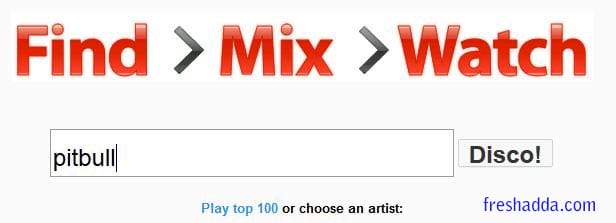
Make an automatic YouTube video playlist of your favorite artist with YouTube Disco.
This feature allows you to type in your favorite artist's name and YouTube will create a playlist of all their hits. I did one for my favorite rapper, Pitbull, and it created an awesome playlist for all my friends and family to enjoy.
#8 Watch What You're Feeling
If you're feeling emotional, try out YouTube's hidden feature called Moodwall. Through the use of keywords and specific phrases in the comments of each video, YouTube specialists have devised an equation that separates all videos into specific moods.
Whether you're feeling Sick, Funny, creative, gross, amazing, sad, deep or Hilarious, the experimental page has a category to appeal to your current state of mind.

#7 Watching Videos with a Slow Internet Speed
If you have extremely slow internet speeds, then "Feather Beta" will really help.
This feature is dedicated to users who want to run videos on a very slow internet connection. The system basically cuts down some bytes that limit the speed of video streaming in your browser.
It's still in Beta mode, as you can see, so it might not work for all videos. Either way, it's a nice work-in-progress that has a lot of potential.

#6 Speed Checker
The most important race in the world is the red bar and the grey bar. Youtube user know what I am talking about. You can actually check the loading speeds of the video by adding my_speed next to the address of YouTube Home Page.
It makes you feel better, you know, knowing if the problem is with your connection, or the blasted video.
If you can't remember the URL extension, right click on any video and head to 'Take speed test'.

#5 Edit Your Videos Right in YouTube
If you edit your videos before uploading them to YouTube, you might want to try out YouTube's Video Editor. With this free tool, you can:
Combine multiple videos you’ve uploaded to create a new, longer video.
Trim your uploads to custom lengths.
Add a soundtrack from YouTube's library of approved tracks.
Customize clips with special tools and filter effects.

#4 Exact Keyword Searching
There are a bajillion videos on Youtube so trying to find that perticular Youtube video you want to watch is an adventure by itself.
You might find yourself crawling through dozens of pages hoping to land the video you actually want to watch.
The solution for this time-consuming exercise is to add allintitle: before the keywords you are search for.
What it does is basically provide you with only videos that include the chosen keywords.

#3 Auto High-Definition Video Play
Sometimes when you play a YouTube video the video quality has been set on default for you, usually at a lower quality video resolution.
To prevent this from happening you can force the system to permanently play videos in an HD format.
Grab the extension called Magic Actions for Youtube available only for Google Chrome and Firefox. Enable the option Auto HD in the extension and select the video resolution you would like to be played automatically.
You can also set the mouse wheel to scroll up (and down) the volume of the video.

#2 Auto Video Replay
There are certain times when you get obsessed with a Youtube video, whether it's a really catchy song or a funny video. Isn't it annoying to always have to hit replay everytime you near the end? Why not activate the looping feature?
The what now? Let's use the same YouTube video. Just replace youtube with the text infinitelooper in the URL and hit enter.
It will redirect you to another YouTube third-party platform where you are also provided with the option of looping selected portions of the video.

#1 Desired Start Time
Sometimes, when clicking on a link to a YouTube video, you're fast-forwarded to a specific point in the video. This is usually the case when the person who linked to the video intended for the viewer to watch that clip, without having to watch the rest of the video. If you want to do the same, here's how :
After the URL link add #t=01m08s or #t=68s to set the starting point of the video at 1 minute and 8 seconds.
You can also just pause the video at the desired point, right-click on the video, and choose copy video URL at current time.


