#10. Good Vibrations
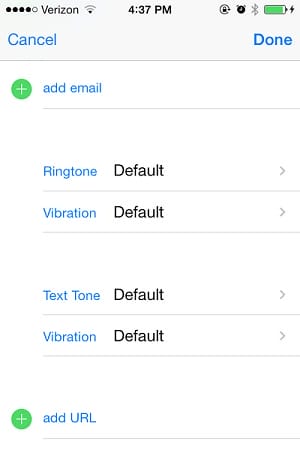
From within your Contacts app, you can enable different vibration patterns for different contacts. This is particularly handy if you keep your phone in your pocket, so you can distinguish hands-free between a pesky email from your boss and a fun text from a friend.
#9. Snapping Photos With Volume Button
If you don't want to take your gloves off to snap a picture, you can simply press the Volume Up or Volume Down buttons to take the photo. Just make sure that the Camera app is open before you do this, otherwise you've just turned your ringer volume up or down.

#8. You'll Not Get Me This Time, Candy Crush!
You can disable in-app purchases in the iPhone settings section. This is especially useful if you have kids, or have zero self-control when it comes to Candy Crush. Go to Settings > General > Restrictions, Enable Restrictions, and scroll down to disable In-App Purchases.

#7. Lock The Camera's Autofocus & Exposure
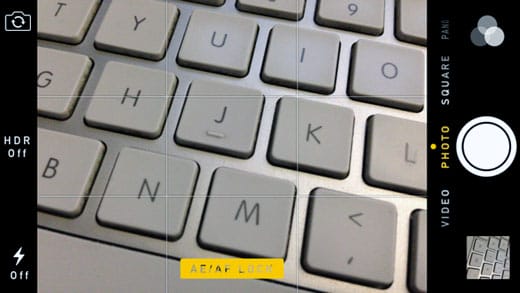
Have you ever gotten irked when you're trying to compose a shot on your iPhone, but it keeps refocusing and readjusting the exposure? Simply press and hold on the screen for a second or so until the yellow square blinks twice. A little yellow icon that says "AE/AF Lock" will appear at the bottom of the screen. Your iPhone will maintain that exposure and focus length until you snap a photo.
#6. Shake To Delete Text
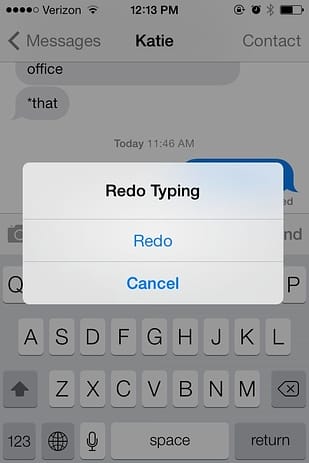
Did you change your mind about the text that you just tapped in a minute ago? Simply shake your phone, and "Undo Typing" box will come up. If you change your mind yet again after you've hit Undo, shake one more time for a handy "Redo Typing" box.
#5. iCloud Backup
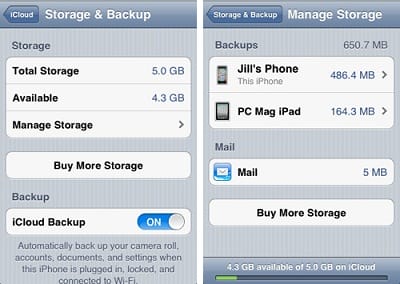
You can easily back up your phone's contacts, settings, email, etc. to iCloud every time your phone is charging and connected to WiFi. Go to Settings > iCloud > Storage & Backup to enable this feature. You may never have to sync with your computer again!
#4. Flights Overhead
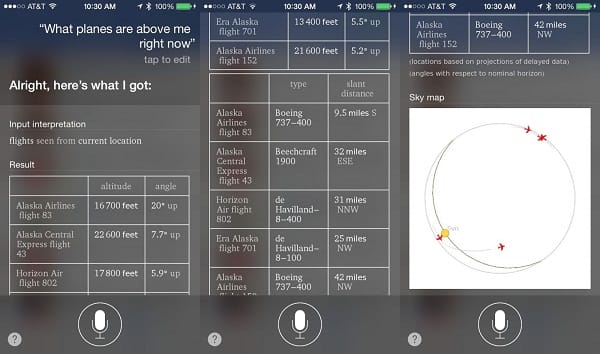
Bring up Siri using the normal method, then ask, "What flights are above me?" or just say, "Planes overhead," and she'll pull up a chart featuring each plane's flight number, its altitude, and its angle. (It can sometimes take Siri about 30 seconds to pull up this data, so be patient!)
#3. Emoji Keyboard
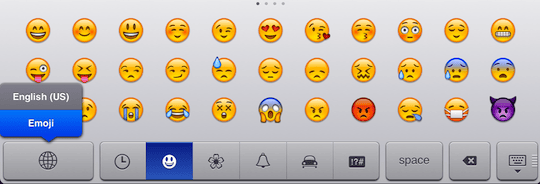
Emojis seem to be the in-thing when it comes to funny little graphic icons. You can enable the Emoji keyboard under Settings > General > Keyboard. Then select "Add new Keyboard." Scroll until you see "Emoji" and tap to add it. To use emoji, tap the button that looks like a globe on your keyboard.
#2. Change Your Passcode To Letters
Have you ever wanted your passcode to be "Butt" instead of four random numbers? Follow these simple steps:
1. Go to Settings > General > Passcode Lock.
2. Turn off the setting that says "Simple Passcode."
3. A screen will appear prompting you to change your passcode, along with a full QWERTY keyboard. The next time you unlock your phone, the keyboard will appear instead of just the number pad.

#1. One-Finger Gestures
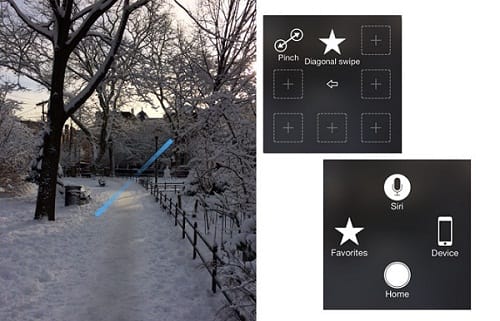
Unlike most tablet-like phones, you can easily get lazy use the iPhone with one hand. Though some gestures, such as pinch-to-zoom, require the use of two fingers, you can set your phone up to be able to perform those tasks with just one finger by turning on Assistive Touch. Open Settings > General > Accessibility and turn on AssistiveTouch. You will see a small floating black box with a white circle. Press this, and a larger box appears with shortcuts for Siri, Device, Home, and Favorites. Select Favorites, then Pinch, to enable one-finger pinch-to-zoom. A blue bar with circles at either end will appear on-screen; you can then use your thumb to pinch-zoom and rotate images.